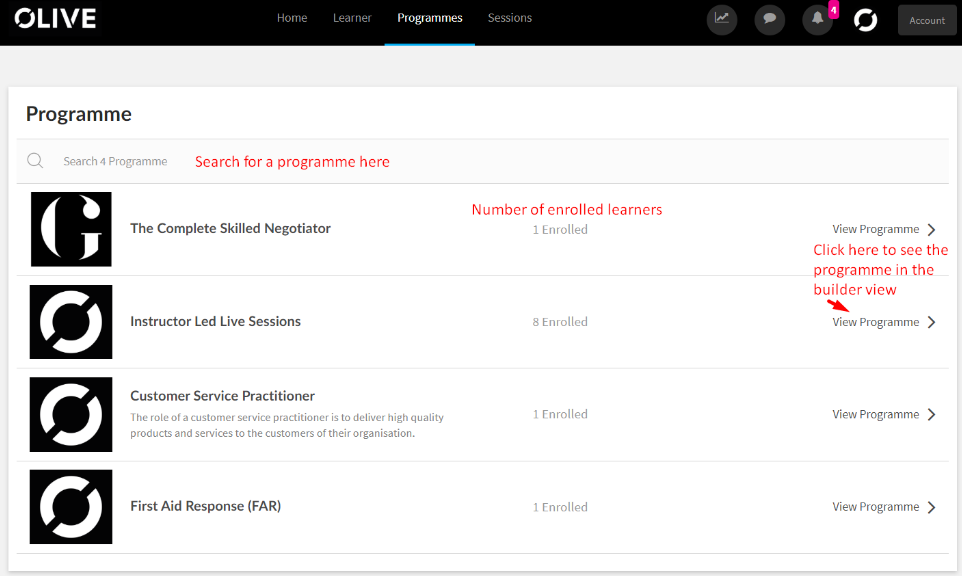
You can access the programmes section by clicking on “More” on the programmes section of the homepage or the “programmes’ tab in the Navigation dashboard as shown below.

In the programmes section as the client admin, you will be able to see all the programmes that have been added to the organisation from the parent organisation as shown below, you can view the program builder but will only have limited access to the program builder and see how many learners have been enrolled in each programme and search from a programme using the Search bar as shown below.
The following shows the expanded view of the programme from a “Client Admin” Perspective
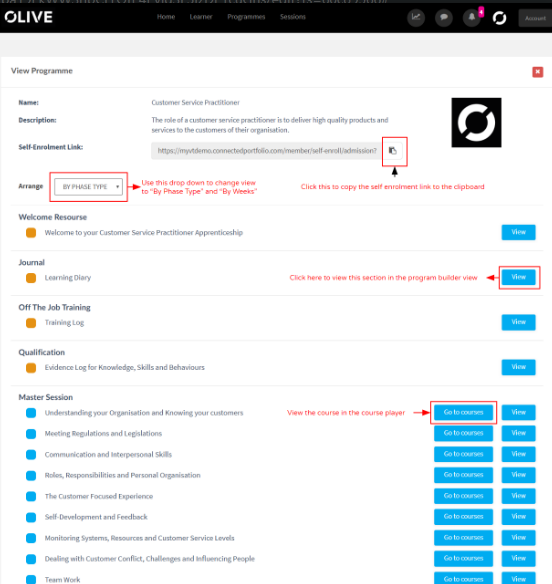
Self Enrolment Link
Client Admin can add learners by sending self enrolments links too, you can click the copy button beside the link in each programme to copy the link onto the clipboard. This can be then sent via mail or messaging systems to the learner for easy access.
Please note
This link can be accessed and if handled wrongly people who have the link and are not part of the programme will be able to create an account in the system.
Once the learner clicks on the link they will get a page similar to the one below,
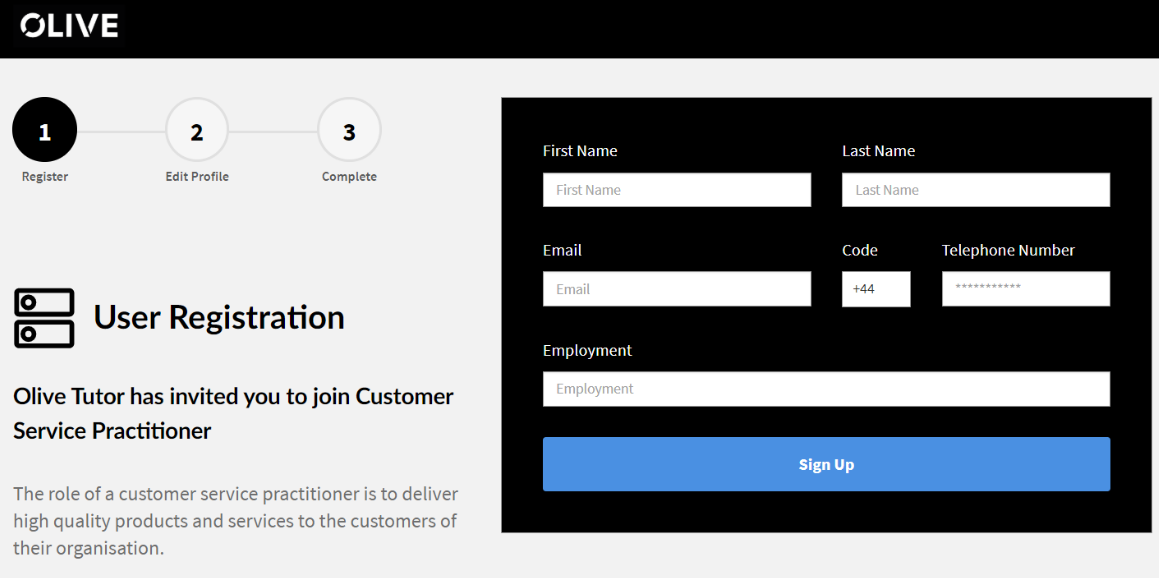
To see the learner registration process using the self-enrollment link, please click the link.
Creating a Live Session
If the programme you are doing has live sessions you can go to that programme and click on view to get to the sections page as shown below and click on “View” beside the Live Session to access the Section.
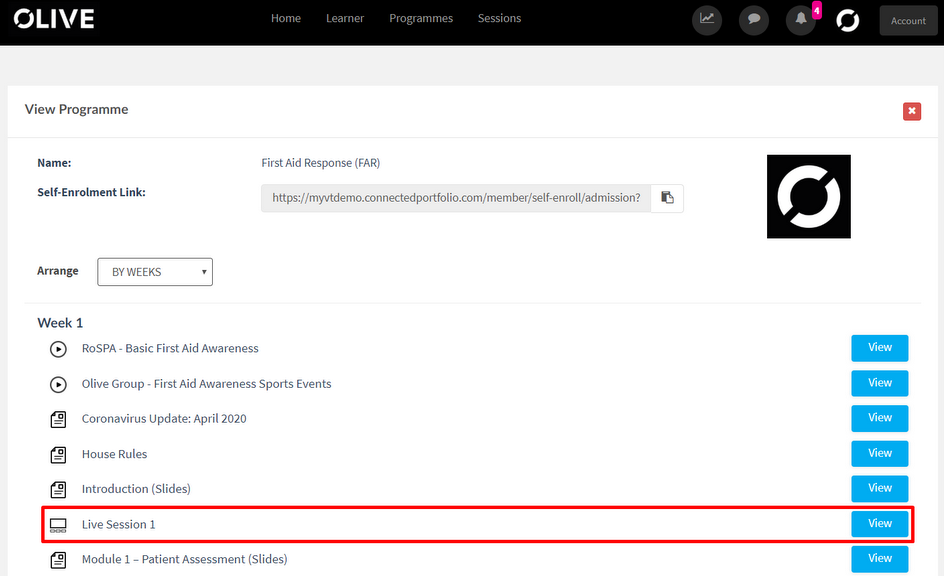
At the bottom, you will be able to see the option to create the live video session as shown on the right.
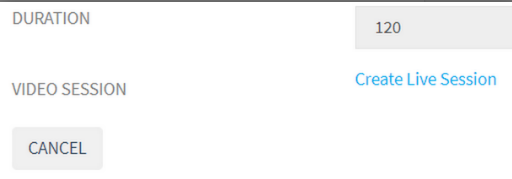
Clicking on the “Create Live Session” will open the Session Creator window as shown below,
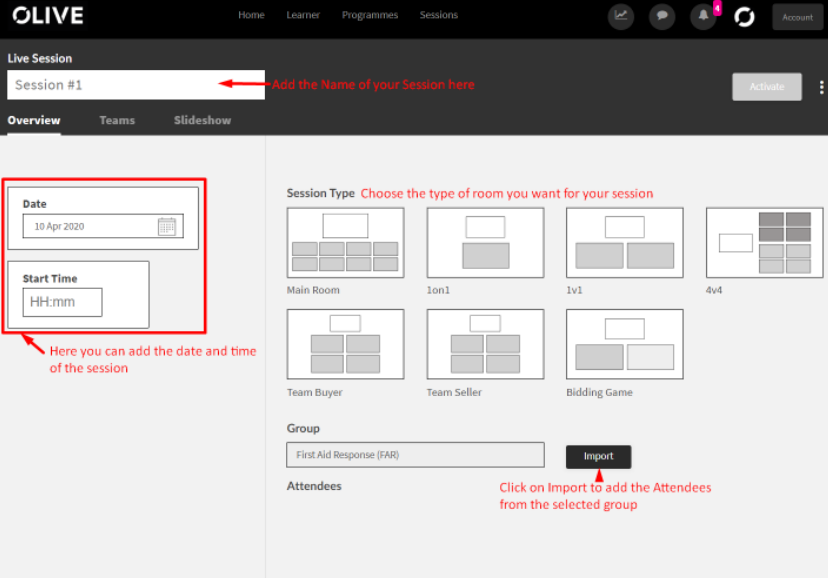
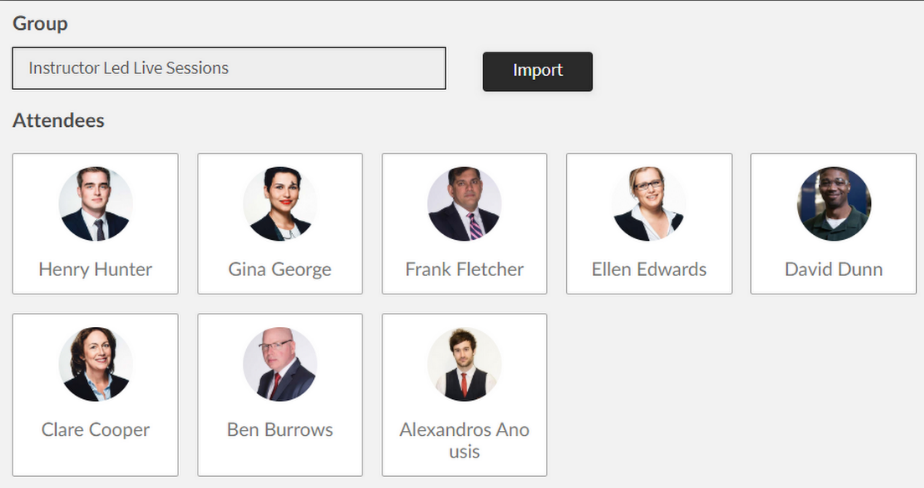
To Import all the members of the group to the session click on the “Import” button. This will import the members as shown below.
Teams
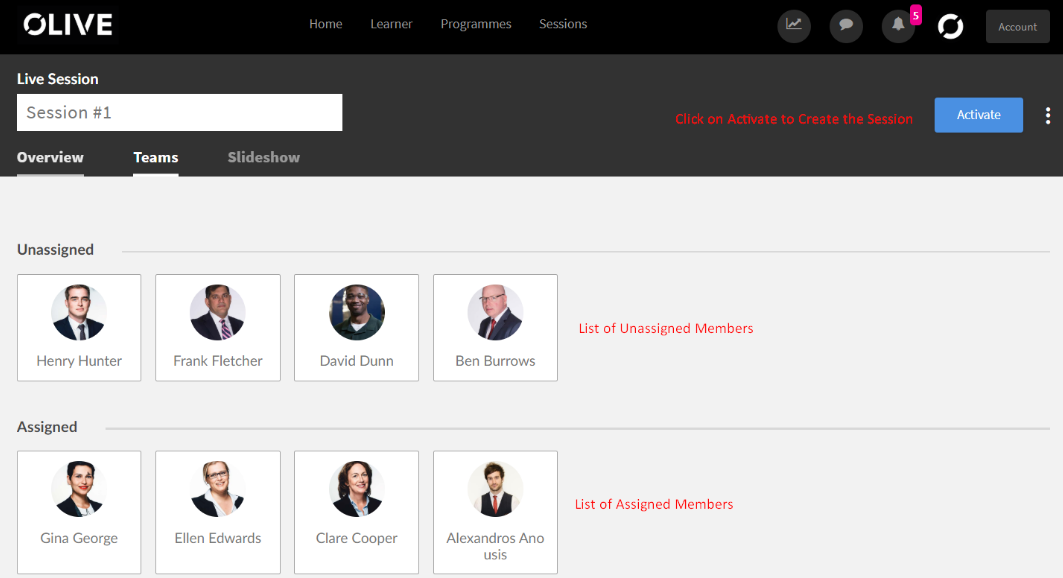
To choose specifically which members need to attend the session, you choose the members from the Teams tab. Here you can drag and drop the members from the Unassigned tab to the Assigned tab to add them to the Session.
Slideshow
On the Slideshow page, you can enable and disable the slide show by ticking the box as shown
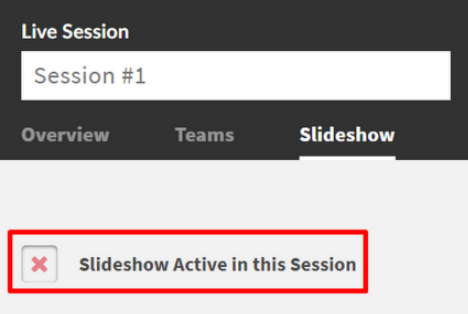
Once the slideshow is active you have the option to upload your slides as shown
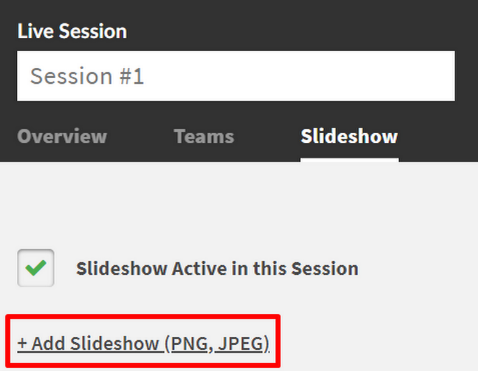
Clicking the “+Add Slideshow” button will allow you to upload PNG and JPEG files.
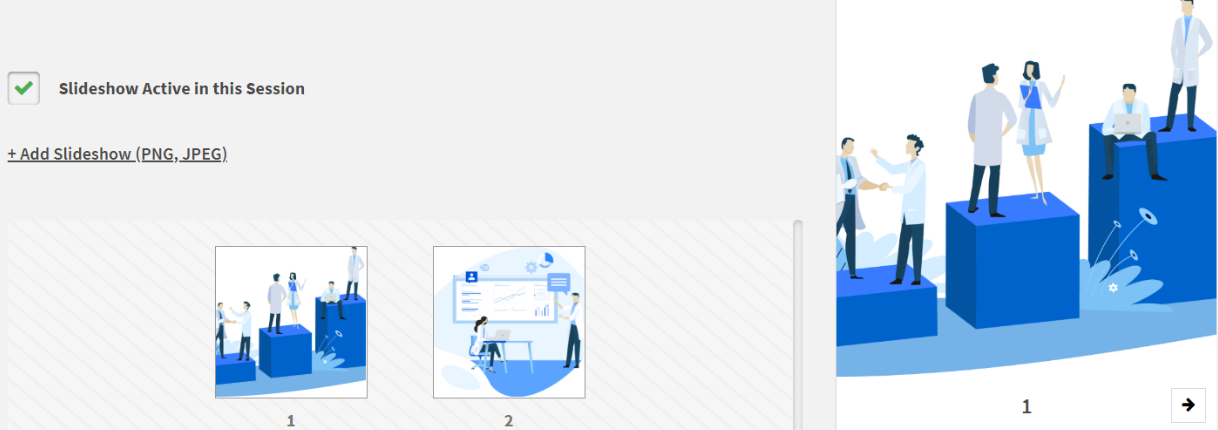
Once all the information has been added you can click on “Activate” and this will add the Live Session to the Calendar and Update all the Learner Calendar as well
