 What's New
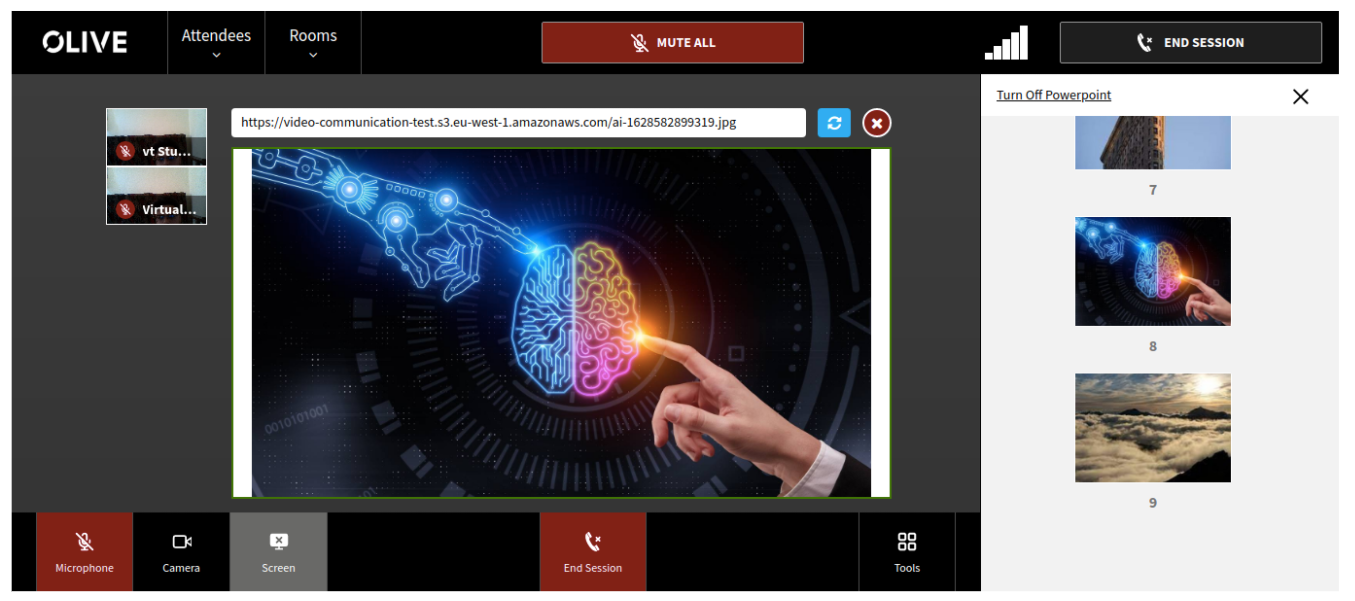
1. New user interface for Presentations in Collaboration Room
The Video communication service collaboration room has an updated user interface where the selected presentation slide provides a box with a URL of the presentation material. This will allow the users to navigate to the content easily when required. There has also been a refresh button added. This refresh button can be used if a delegate is having trouble loading the materials. This will make it easier for all users to access content in multiple ways. This feature appears for both tutor and learner user types.
New File Formats for Presentation
Employer / Tutor user type account can now add a variety of live Session presentation slideshow in the file format (PNG, JPEG, MP4, MOV) along with drag and drop feature to sort the slide. This is to to help users expand their capabilities.
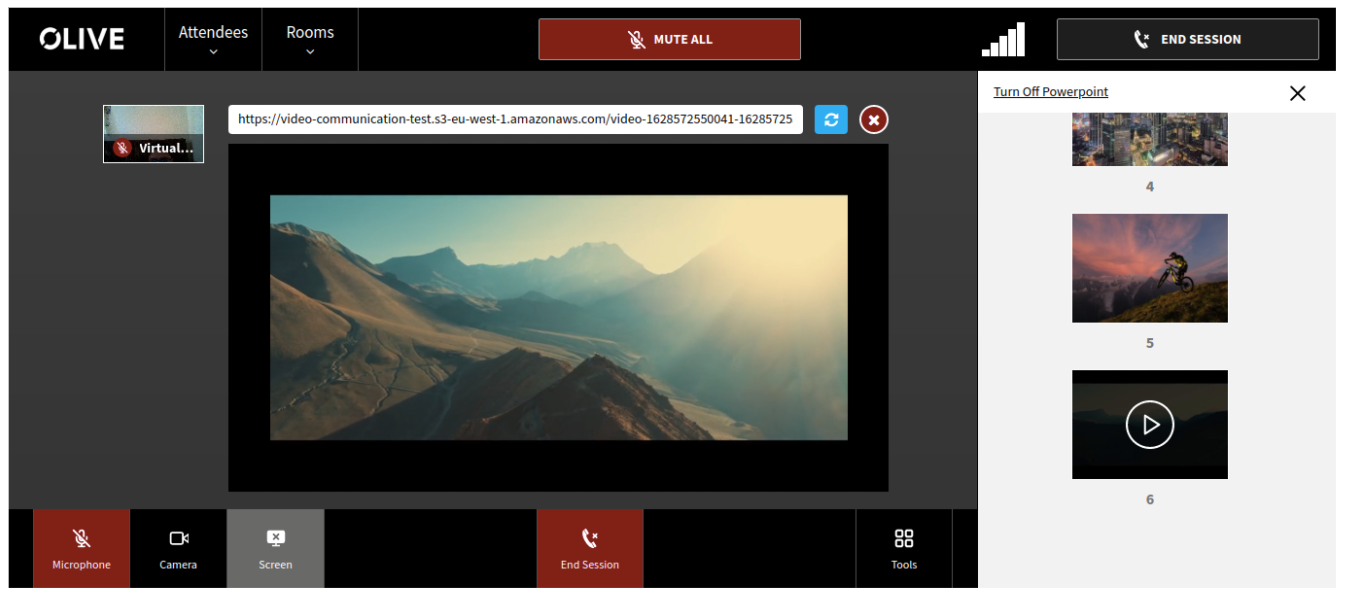
2. Video Presentation Options in Collaboration Room
The Video communication service collaboration room has received an updated of its user interface where the selected video presentation provides a box with the URL of the video presentation material with a refresh button. When a user is sharing their screen the screen will now auto expand for people viewing the video room. This feature appears for both tutor and learner.
3. Session Settings and Video Configuration
Live Session Collaboration room has been updated with the below three features:
- Presentation Materials and Its ordering
Presentation materials whether there are images or videos can be managed and ordered from the platform while creating a session in advance of the workshop.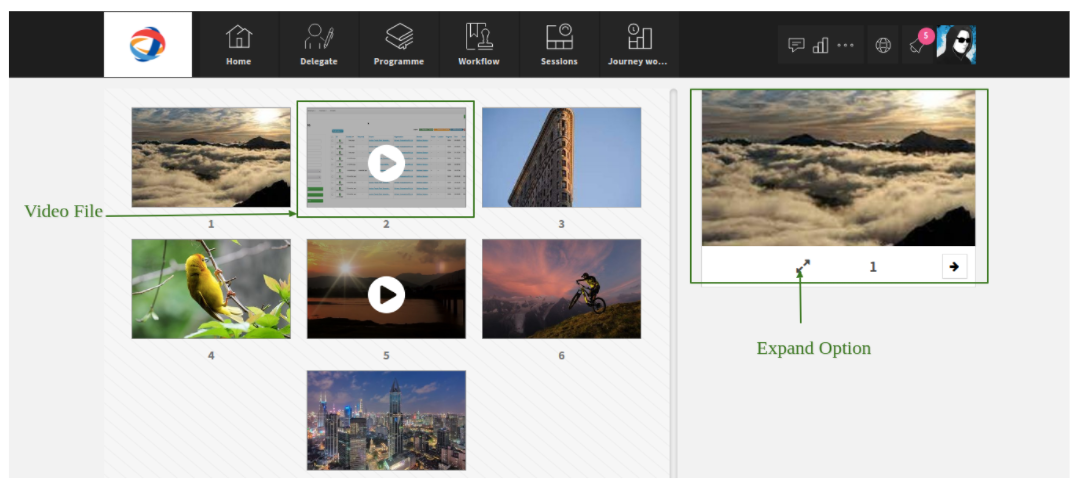
- Video Configuration
Settings for the rooms can now be managed and configured while creating a session. For this configuration, a new tab has been added in the Live Session Create form page.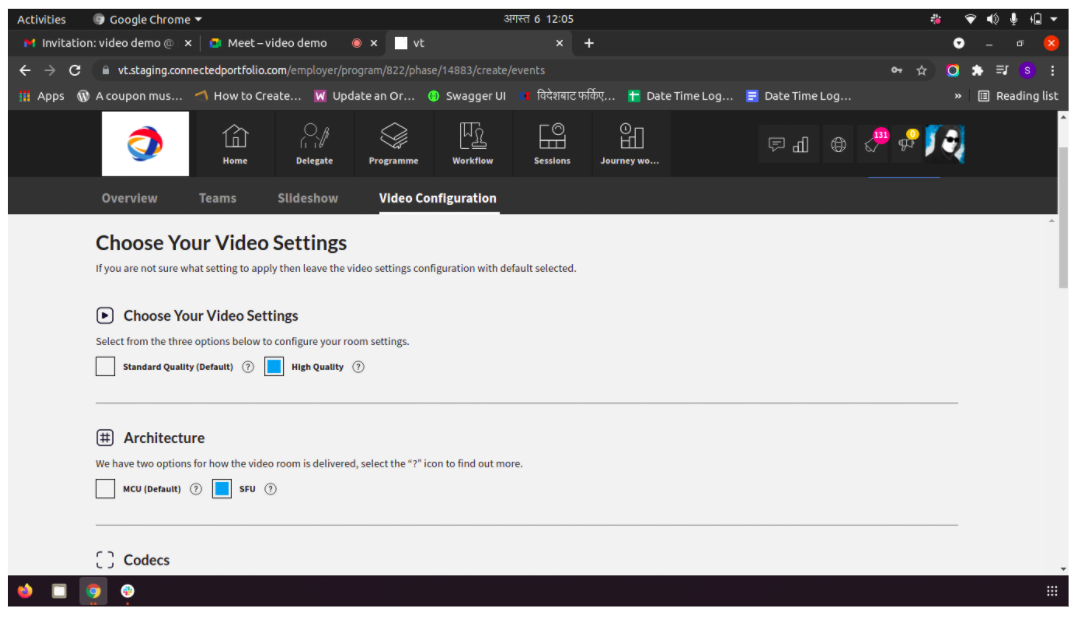
As a guideline please see the below outlines:
MCU: The MCU environment is most suitable to low end devices requiring less processing power however if a user has poor connectivity this may impact other participants' experience within the virtual environment.
SFU: The SFU environment is suitable for room types with 12 or more participants. This room works better with higher end devices requiring more processing power however if a user has poor connectivity other participants experience will not be impacted within the virtual environment
- Draft Session
Rooms for the sessions can also be saved as drafts when there are one or more videos added to the session.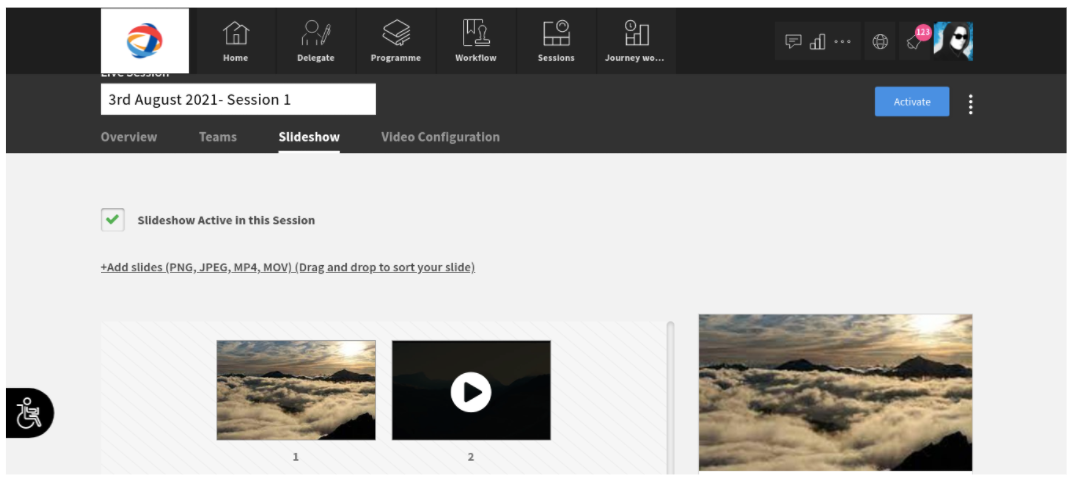
4. Auto Assigning Learners to Live Session
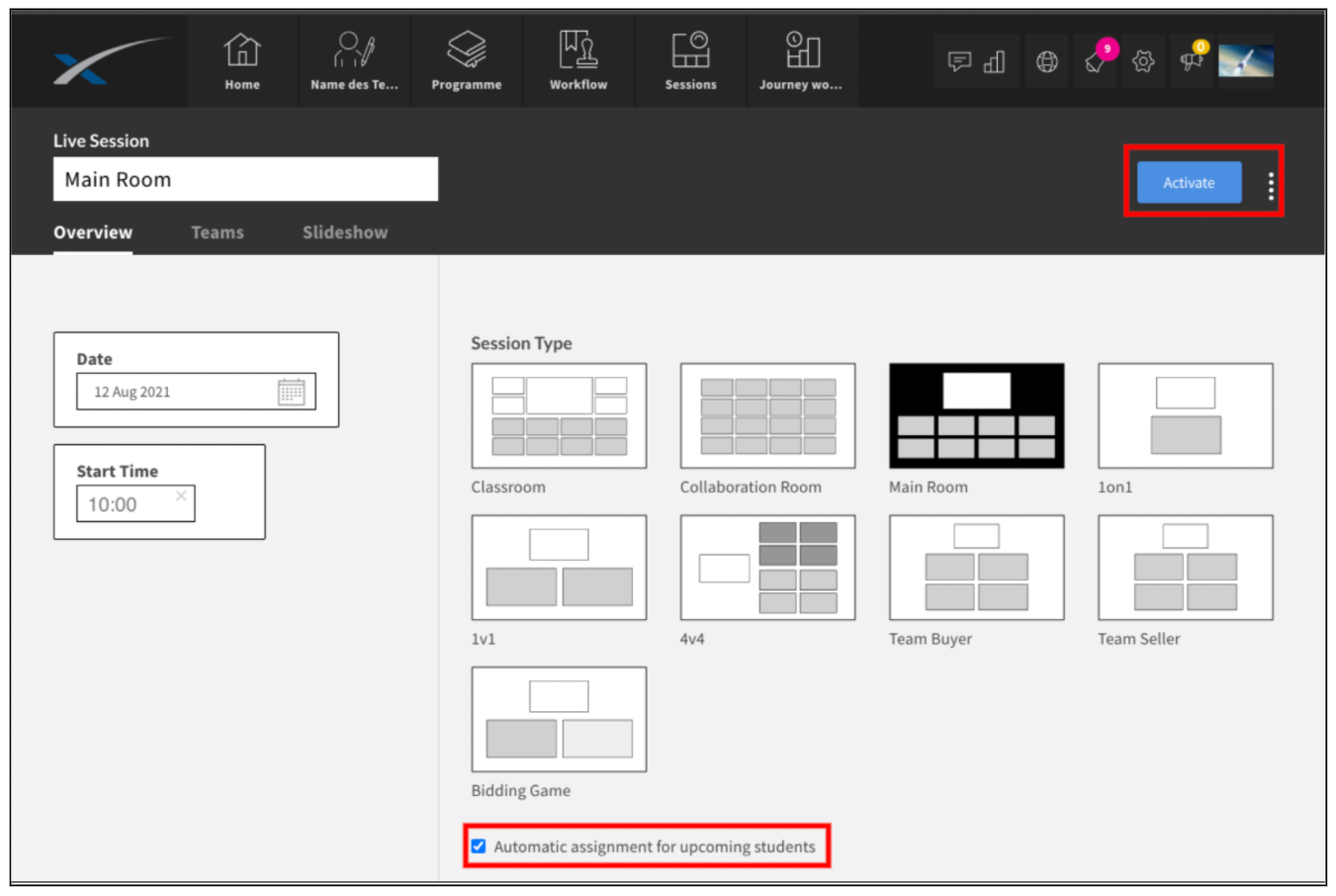
An employer / tutor can now enable the automatic assignment in the live session builder for Collaboration and Main room when a student enrols themselves on the programmes using the self-enrollment link.
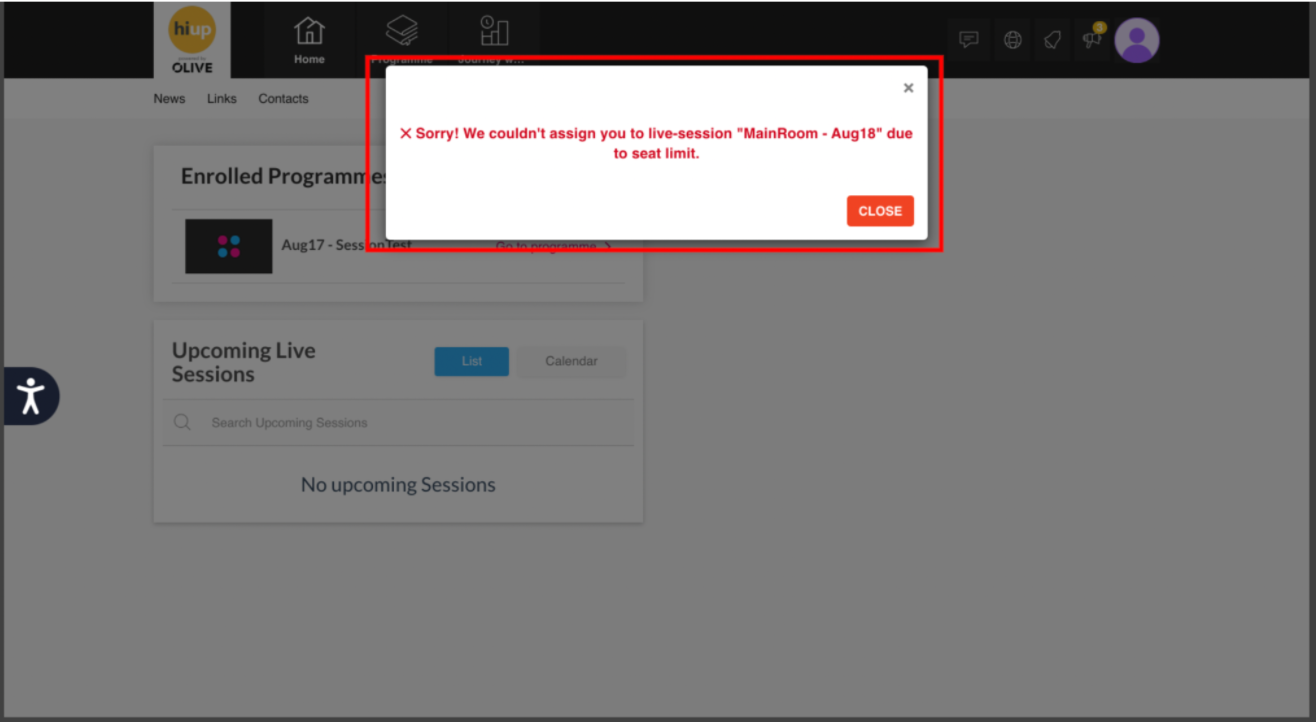
Seat Limits
If the seat limit for these Live session rooms is reached then students will be prompted with a notification informing them that the room is at capacity during the self enrolling process. Students can see notifications even if they have successfully assigned a Live session using a self enrolling process.