If there is a Journey Worker Rate associated with the Programme it can be viewed in the Journey Worker Rates tab on the Navigation banner as shown below,

This will take you to the Journey Worker Rate page that shows you the Rates and Roles for which the Rates are applicable to as shown below,
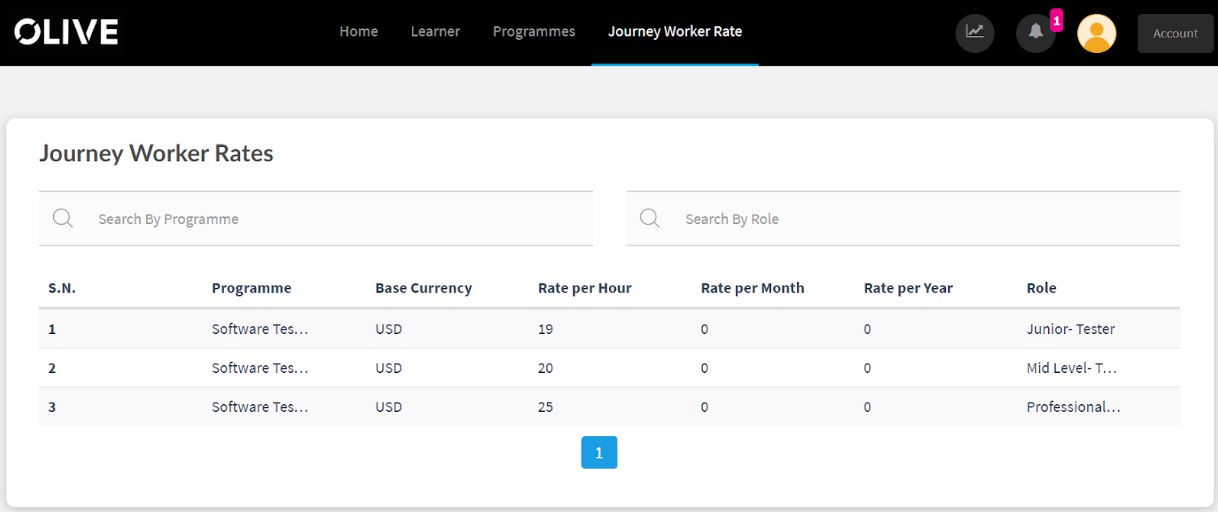
Here you can search for rates based on Programmes and Roles.
Adding Wages to an Apprentice
If a learner is applicable for a wage increase based on the guidelines set by the Company on needs a raise this can be done using the Wages section for that particular Learner.
To Access the Wages Section, Navigate to the Learners page and Click on the “View” button beside the Learner Name.
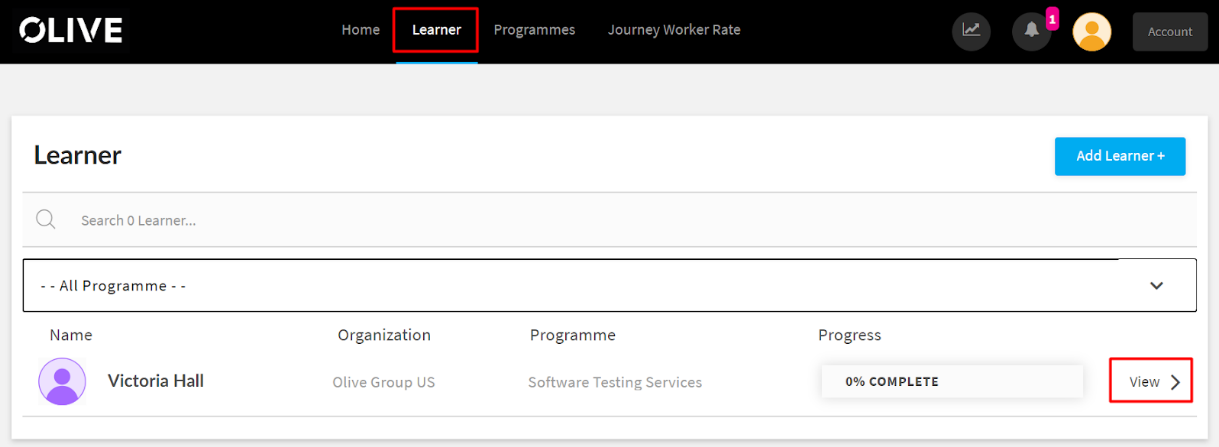
In the Learner view page, you can see the “View Wage Meter” button on the Top Right Corner as shown below
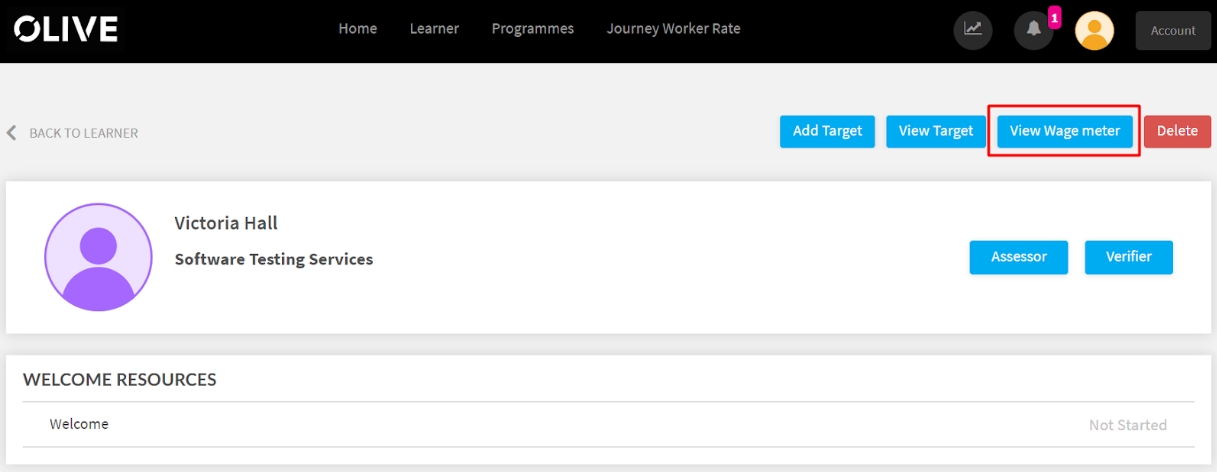
This will open the Wage Schedule Page for the Particular Learner as shown below,
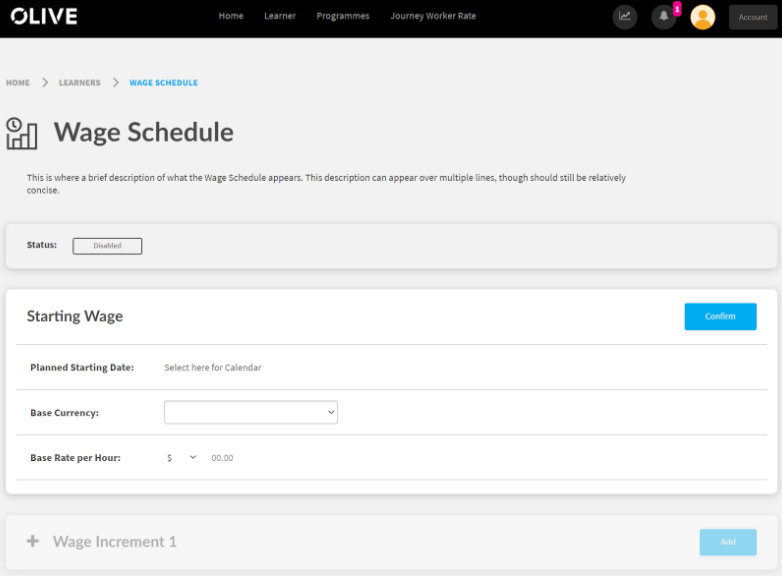
By using the Journey Worker Rates page as a guide you can assign the Worker Rates for that particular Learner as shown below.

In the Planning Starting Date, the Client Admin can add the date from which the learner will be starting the Programme in the Company.
The Base Currency and Base Rate Per Hour can be taken from the Journey Worker Rate Page that has been set by the Admin.
To Edit the Schedule, you can click on the Edit button at the Top Right of the Section.
Once you are happy with the details, you can click on the “Activate Wage Schedule” to Activate the Wage Schedule.

Once the Wage Schedule is Activated the Status will show as “Active” and the Starting Wage as “Approved”
Once the Journey Rate is Activated this cannot be edited, please make sure to double-check the details before activating the Schedule.
Wage Increments
Once a learner has shown the competency for a raise in the programme, the Client Admin or Assessor can add a wage increment for the learner.
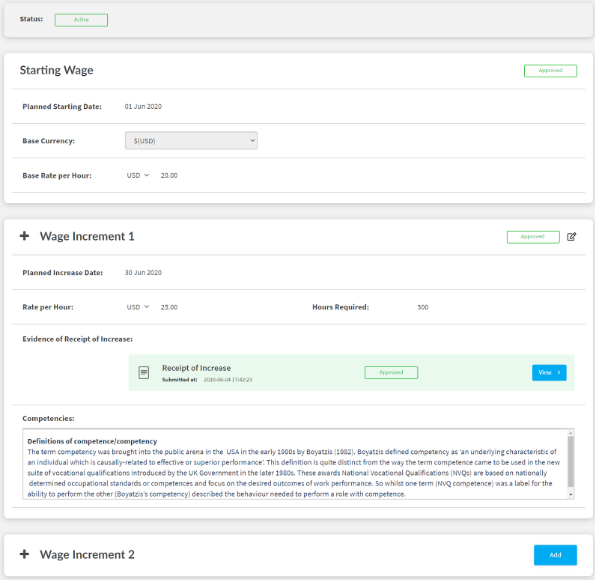
Adding a Wage Increment
To add a Wage Increment, the Assessor and Client Admin can do this from the wage schedule page by clicking the “Add” button beside the Wage Increment as shown below

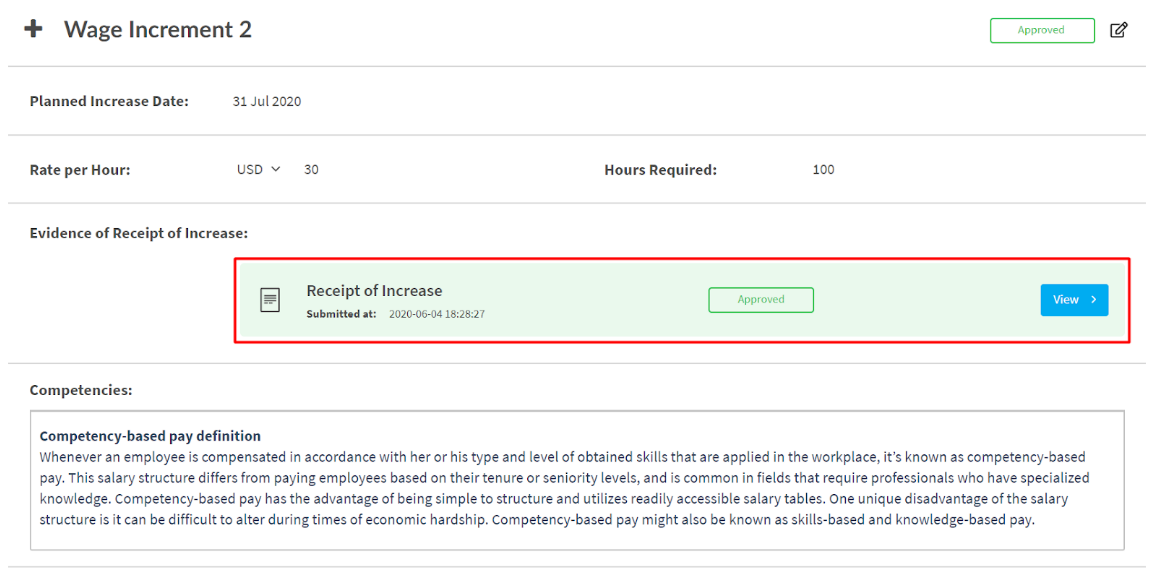
Here you can assign the date from which the Increment for the wage will start and the Rate at which the Rate is increased to. (This is a cumulative amount so if the Increment is 10$ the amount should be 20$ (Base Amount) + 10$ (Increment) = 30$
The Hours required are the number of hours the Learner has to put in before the Increment can be applied.
In the Competences Sector, the Client Admin and Assessor can put in the criteria to meet the Wage Increment as well.
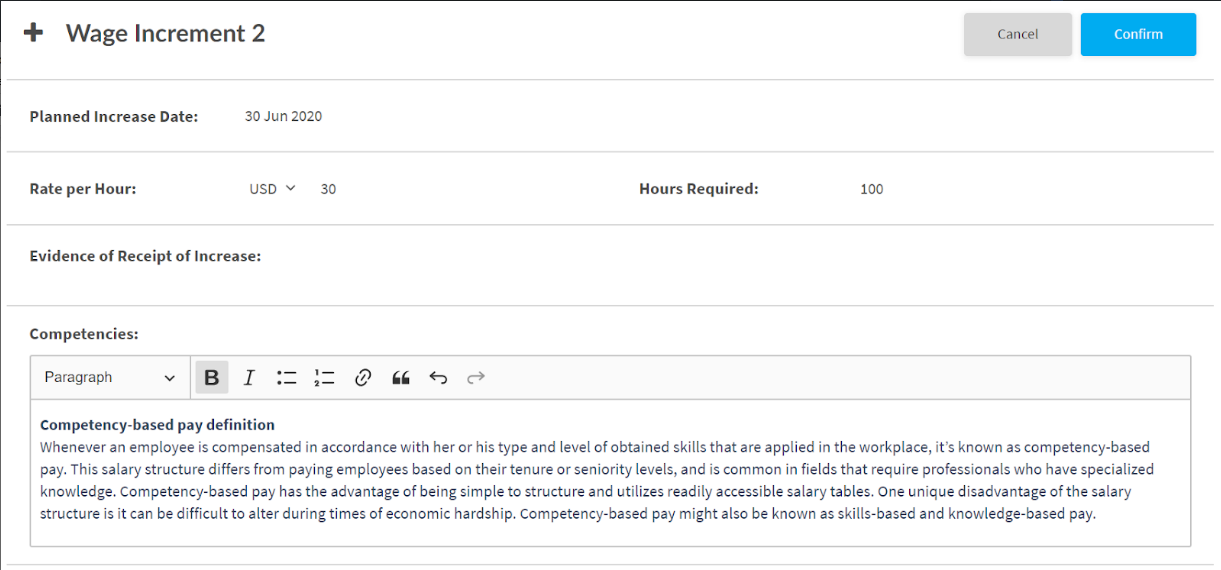
Once the Wage Increment details have been put in you can click on “Confirm” to apply the Wage Increment.

Approving the Wage Increment
Once the student/learner has successfully met the criteria for the Wage Increment the Assessor or the Client Admin can Approve the Wage Increment by clicking the “Approve” button or if there are any changes to the Increment, this can be edited using the “Edit” button as shown below
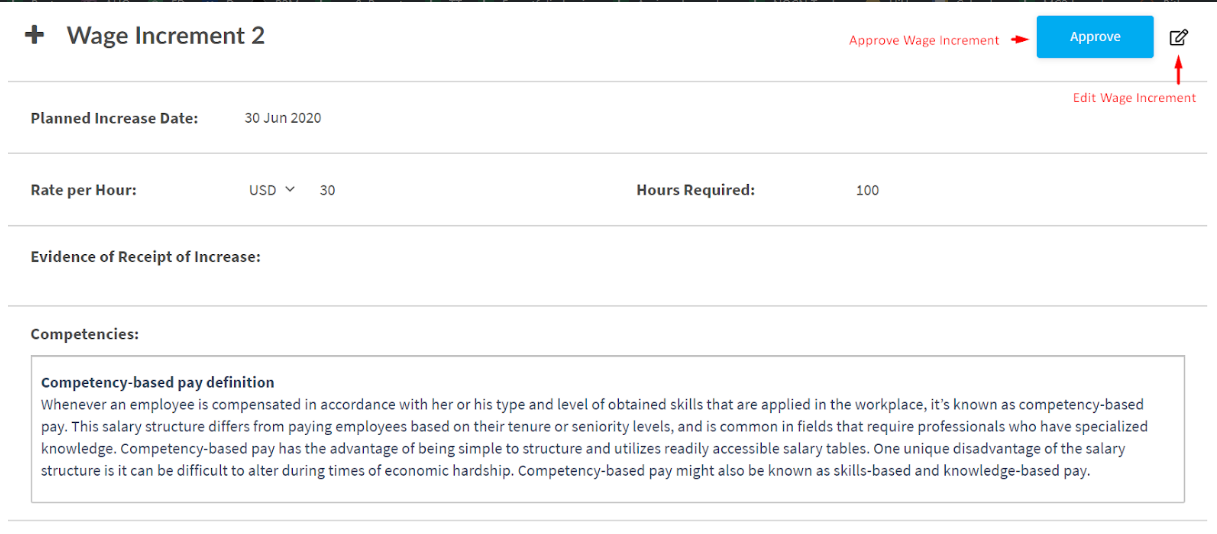
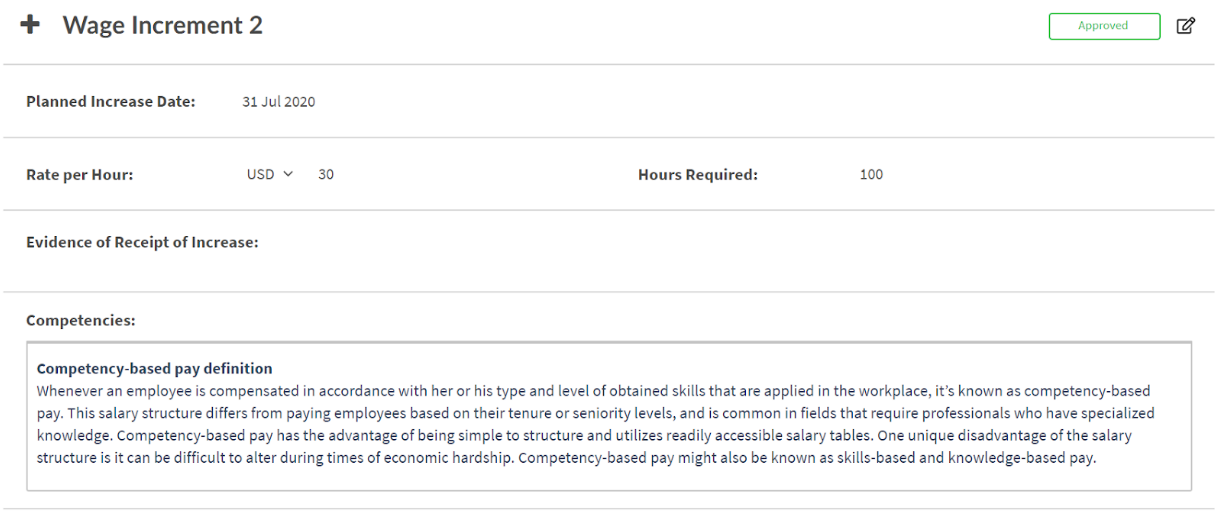
Once the Wage Increment has been approved, the student can then upload the Evidence of Receipt of Increase from the Students Page.
Approving the Receipt
Once the learner has uploaded the Receipt of Increment the Assessor will be able to approve the Receipt and will show it in the system as shown below