Step 1: Share Programme
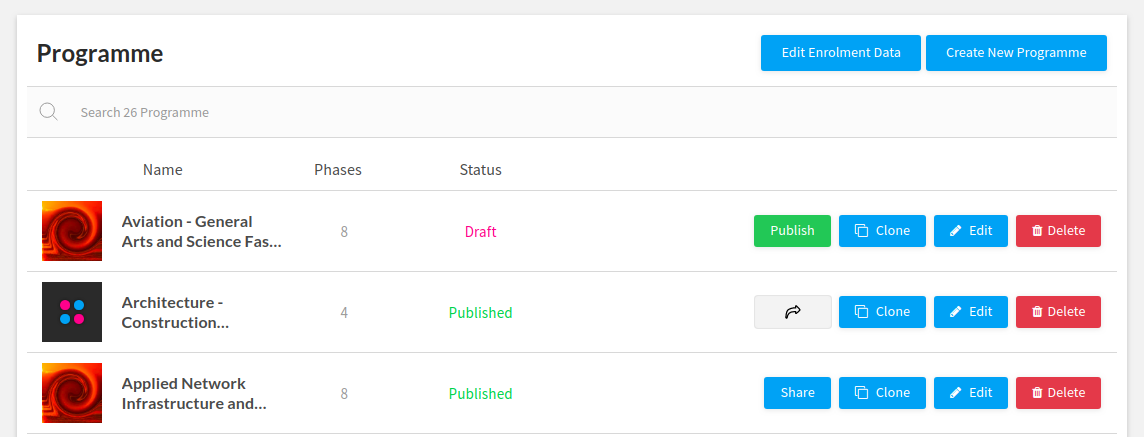
The first step towards sharing the programme is to click the Share button for the published programme by the admin.
Step 2: Set Programme Price
Once the share button is clicked for a particular programme the process will move to the Price setting for that programme.
Here Pricing can be set two methods:
- Free
- Purchasable
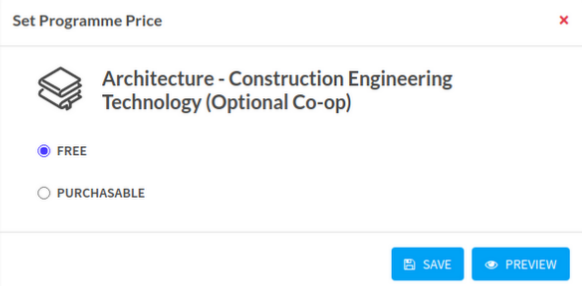
- Free
Choose the Free option on Set Programme Price & click on the Save button to enable the price of the programme to be free for purchasers.
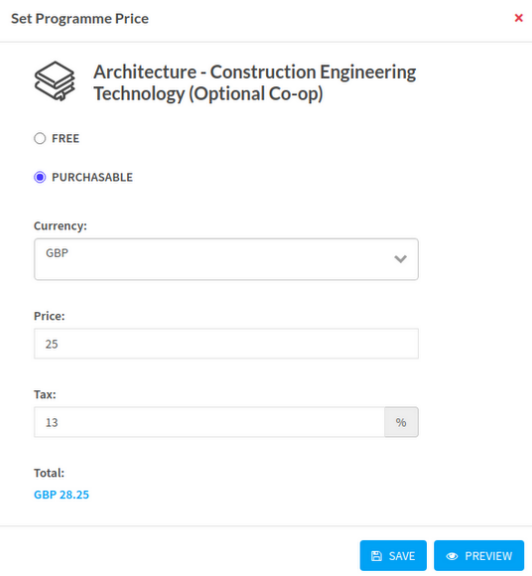
- Purchasable
Choose the Purchasable option on Set Programme Price & add Currency, Price, Tax details and click the Save button to enable the price of the programme to be mentioned for purchasers.
Click on the Edit icon from the reseller link, Program with purchasable or free courses can be seen with the save & preview button.
Step 3: Reseller link
Once pricing is set for the programme Reseller link will be generated within that programme.
Click on the programme which has been published by the admin and then click on the edit button and a Reseller Link can be seen.
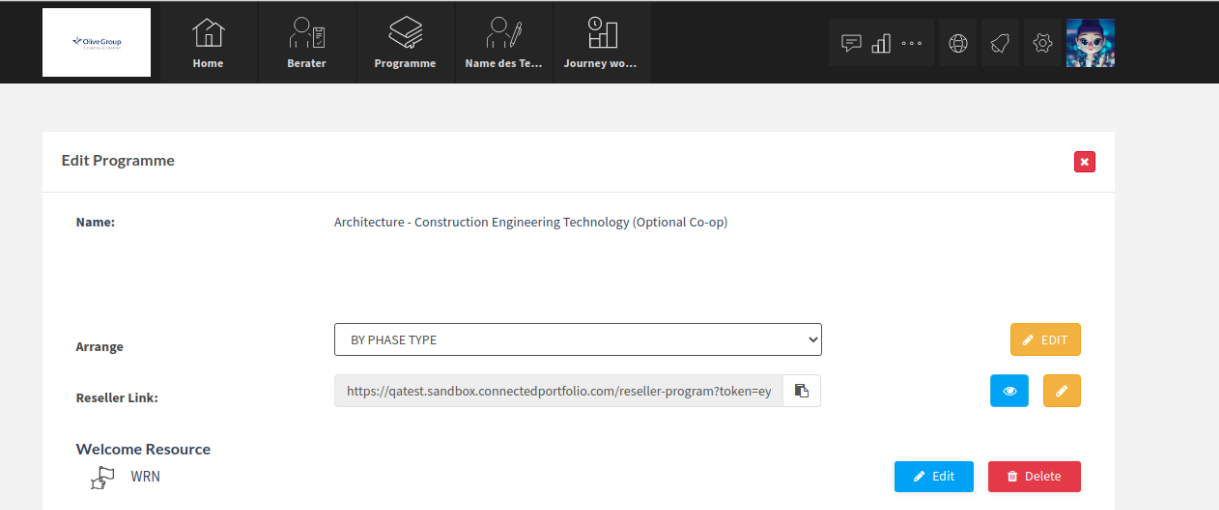
Execute the reseller link on the browser tab and then click on login to import.
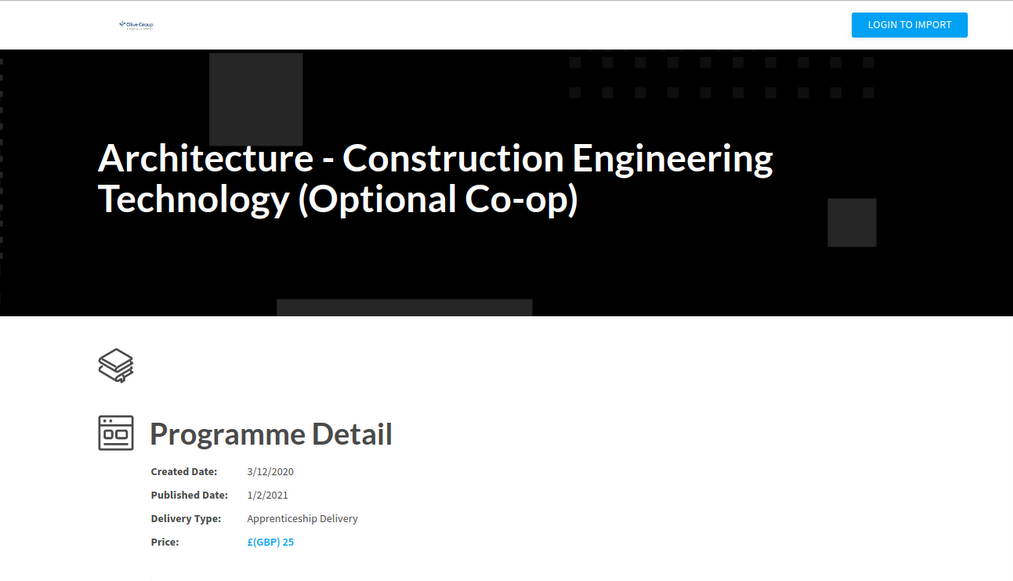
Step 4: Login to Import
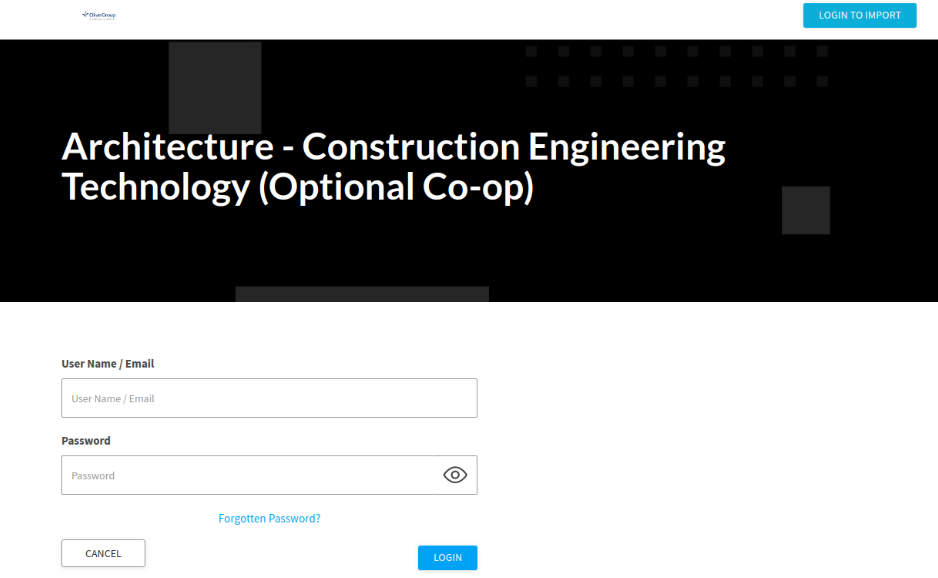
When the Login to Import button is clicked, a username and password dashboard appear with the login option where only the admin or sub-admin can login.
Step 5: Purchase Programme and Add the number of seats
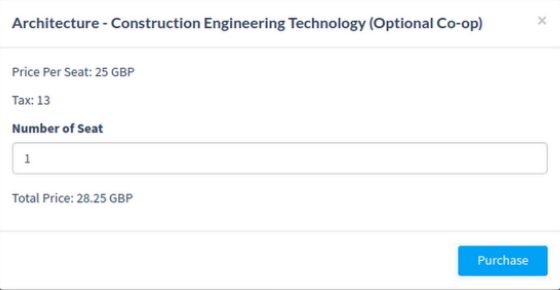
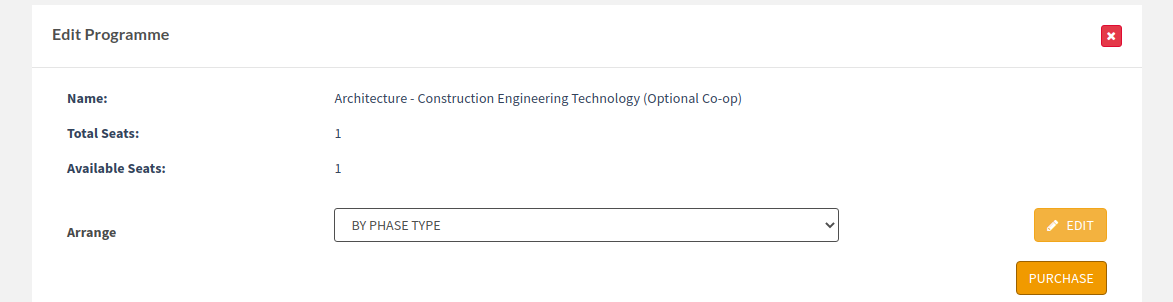
After login a dashboard appears with a Purchase button which includes the purchase of the programme.

The above dashboard is shown while clicking on the Purchase button where the admin can add a number of seats.
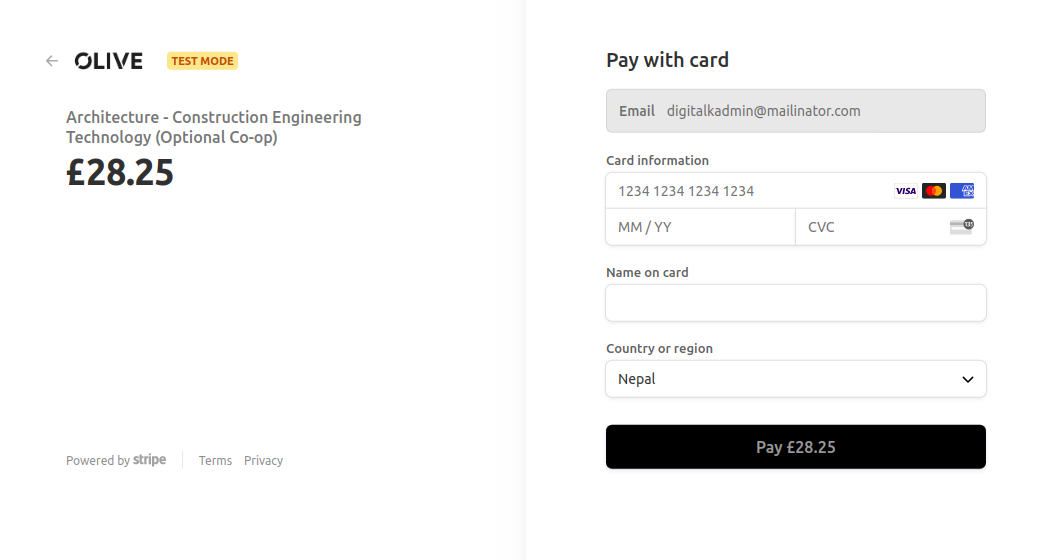
As soon as the number of seats is added as per requirement, the Stripe dashboard can be seen after clicking on the purchase button
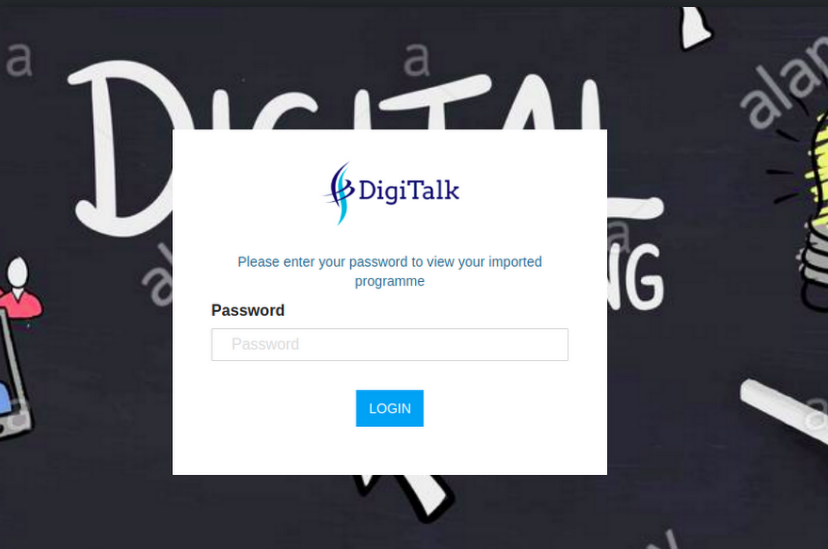
After stripe payment proceeds, a login option is required to ensure the payment and number of seats.
Step 6: Login to Admin Dashboard
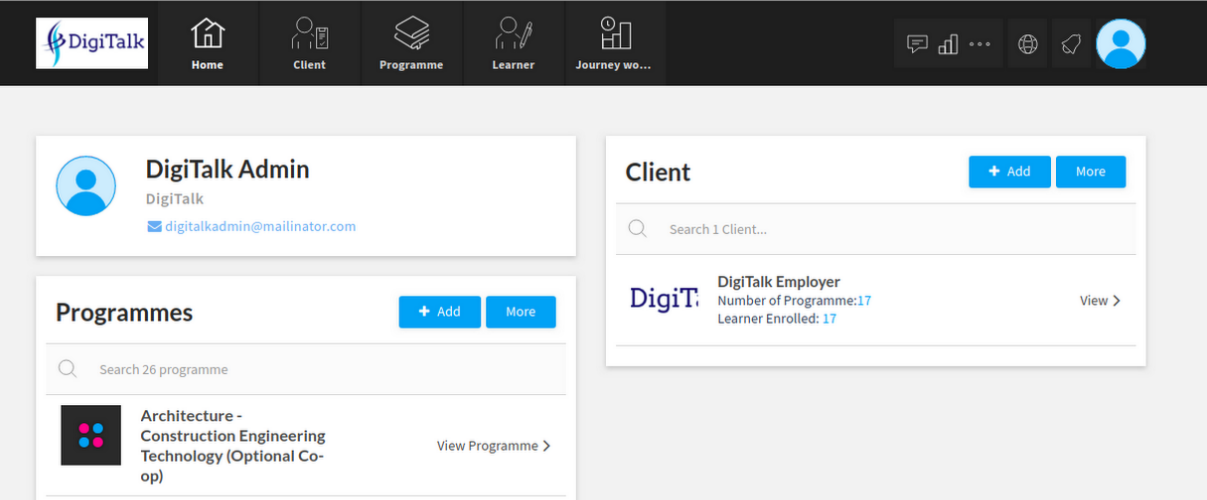
Admin dashboard is logged in as soon as the login details are entered for the purchase of the required number of seats of the programme.
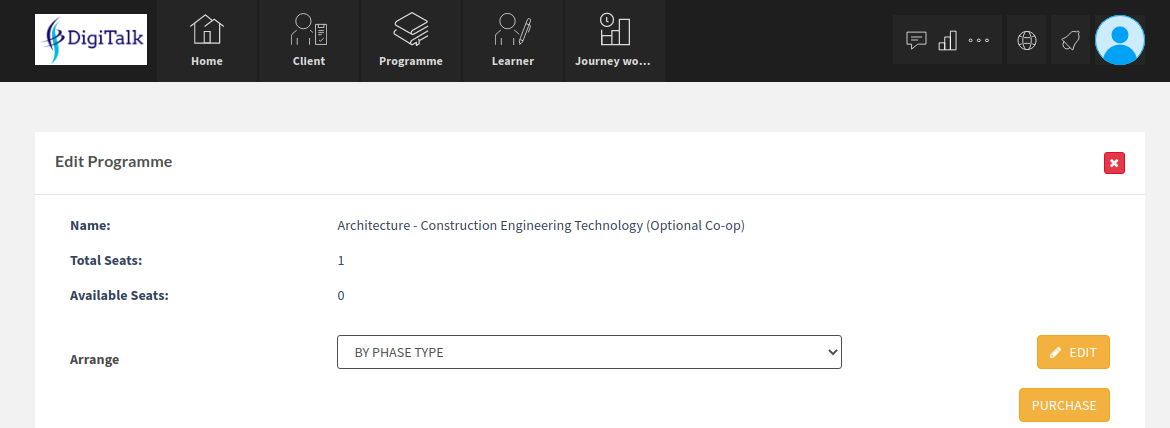
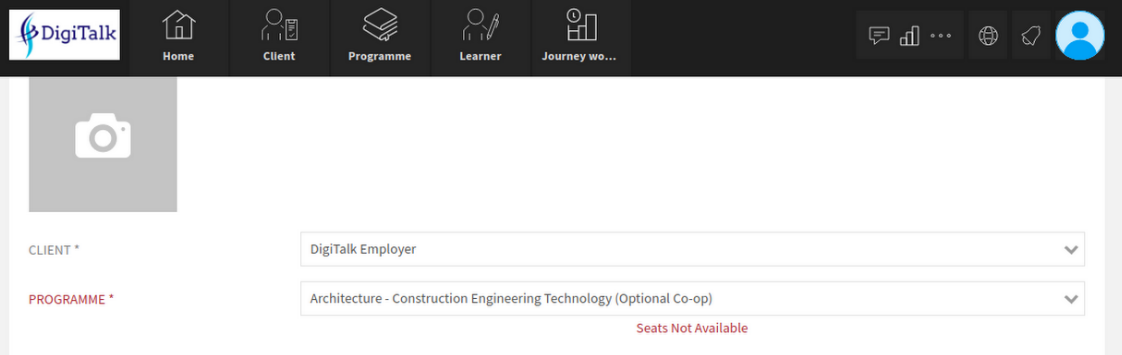
Thus a required number of learners can be created once the purchase is successful.