Username and Password provided by Company
If you have already received a mail from your company or Olive with your username and password you can click the link to see how to log in.
Registration Email from Olive
If your Admin has already enrolled you on the system, you will be getting a mail similar to the following,
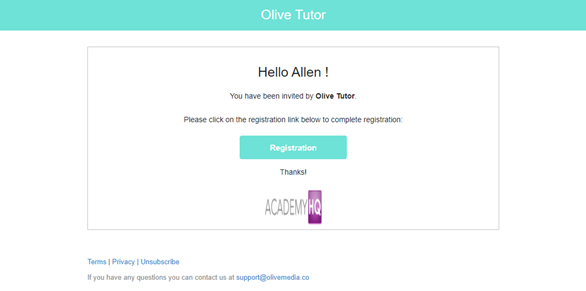
Clicking on the “Registration” button or clicking on the “OK” button on the previous page will take you to the following “Student Registration” page as shown below.
You can click on the “Submit” button to proceed to the portfolio.

Password Policy
When creating your password is best to have a password that is,
- Minimum 6 characters long
- One Uppercase, One Lowercase, One Number, and One Special Character
- If there is a security breach please let your administrator know as soon as possible.
Self Enrolment Link from Admin
If your admin has sent you a self enrolment link it should look like the following,
https://(CompanyName).connectedportfolio.com/member/self-enroll/admission
Once you click the above link you will be taken to a page similar to the one below,
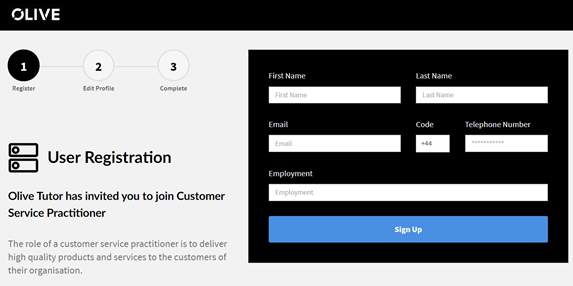
On the above page, you can type in your details like
- First Name
- Last Name
- Email Address
- Telephone Number, and
- Employment Status
Once you have entered your details you can click on “Sign Up” and this will take you to the “Edit Profile” Page as shown below.
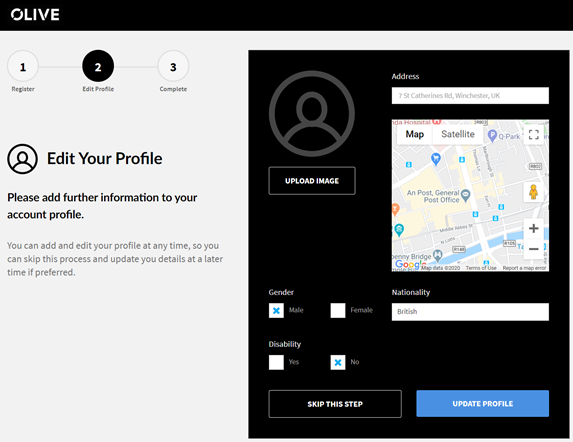
You can skip this step and do this at a later time in the system, please click the following link to know-how, or you can,
- Upload your Profile Pic
- Address
- Gender
- Disability
Once you have added the information you can click on the “Update Profile” button and this will take you to the complete page as shown below,
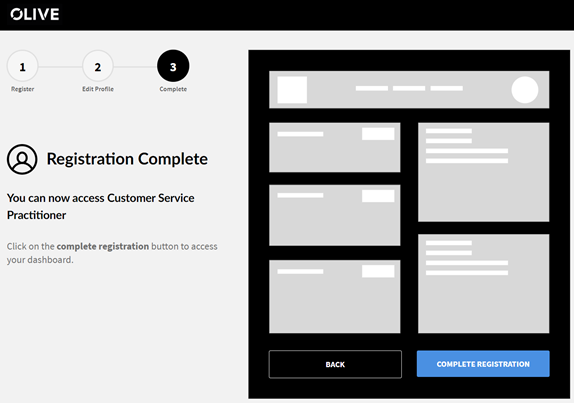
Here you can complete the registration process by clicking “Complete Registration” or click on “Back” to go back and make changes to your details. Once you click on complete registration the following message will pop up.
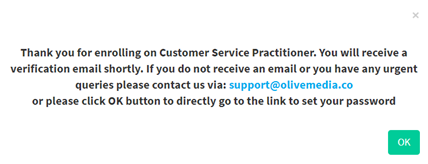
This will send a registration email to your provided email address as shown below,

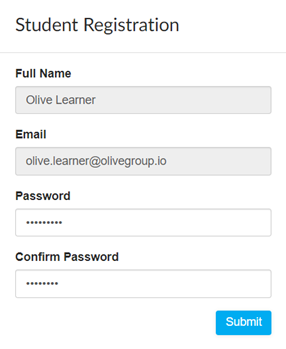
Clicking on the “Registration” button or clicking on the “OK” button on the previous page will take you to the following “Student Registration” page as shown below.
You can click on the “Submit” button to proceed to the portfolio.
Password Policy
When creating your password is best to have a password that is,
- Minimum 6 characters long
- One Uppercase, One Lowercase, One Number, and One Special Character
- If there is a security breach please let your administrator know as soon as possible.