By clicking on the “more” from the Programmes section or the “Programme” tab in the Navigation Banner, this will take you to Enrolled programmes as shown below.
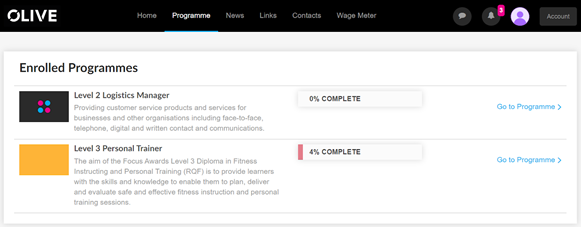
Here you can see the programme, a description of the programme, the overall completion and you can go to your programme by clicking on “Go to Programme”.
Once you are in your programme, the content is divided into the following sections:
- Welcome Resource
- Behaviours
- Knowledge
- Skills
- Qualifications
- Masterclasses
- On The Job training
- Off The Job Training
- Journal
- Gateway
- Final Review
- End-Point Assessment
By clicking on ‘view’ beside each section you can go further into the section
Welcome Resources
The welcome resources contain the relevant welcome documents and links to various resources relevant to the learner for the apprenticeship.
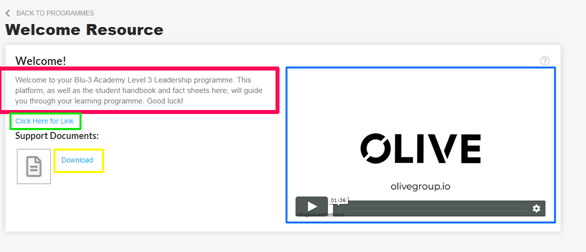
- In the welcome resource, you have a welcome note from the company welcoming the learner to the programme.
- The link under the welcome note takes the learners to a page that has more information regarding the programme.
- The Support documents include company handbooks or learner guides that the learner will be able to download.
- The Video on the right can be a promo about the programme or a guide on how to use the system.
Behaviours
Behaviours are mindsets, attitudes or approaches required for competence, generally across the entire occupation. Whilst these can be innate or instinctive, they can also be learnt, so they are effectively a subset of skills. Behaviours tend to be very transferable, meaning that, at any one level, they may be more similar across apprenticeship standards than knowledge and skills.
To go into the behaviour you can click on the “view” button beside the behaviour.

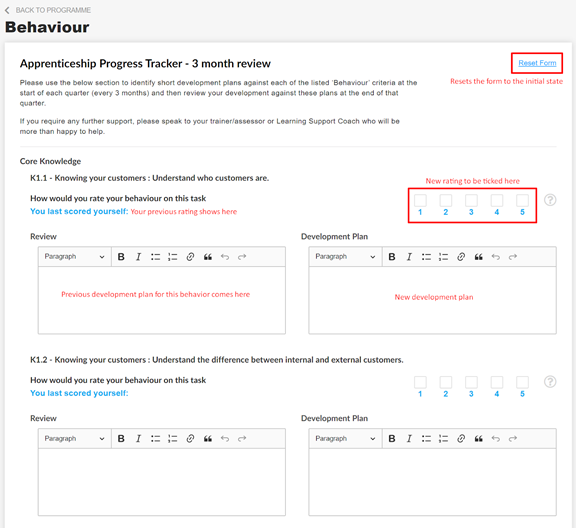
In the first behavior checklist, as shown below, you will have to type in your development plan for each of the required behaviors and also rate your current aptitude for the behavior.
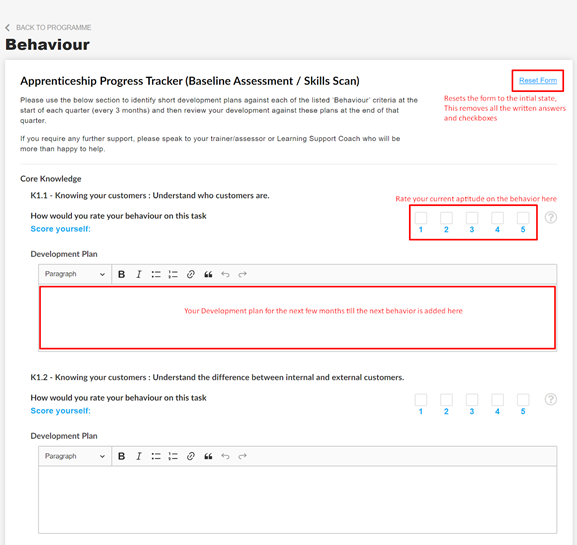
The Second and subsequent checklists will be as shown below, here the information from your first behavior log will be pulled in. The timeframe for each behavior checklist depends on how the admin has the program built. Each behavior log can have a time interval of 3-4 months.
Knowledge
This is the information, technical knowledge, and ‘know-how’ that the individual needs to have and to understand in order to successfully carry out the duties that make up the occupation. This could include knowledge that the individual needs to have an awareness of (e.g. background technical knowledge, company policy, or legislation) or more specific information they will need to apply in their everyday activities. Knowledge statements relating to the latter typically begin with ‘A [butcher] knows and understands... a, b, c, d, e...’

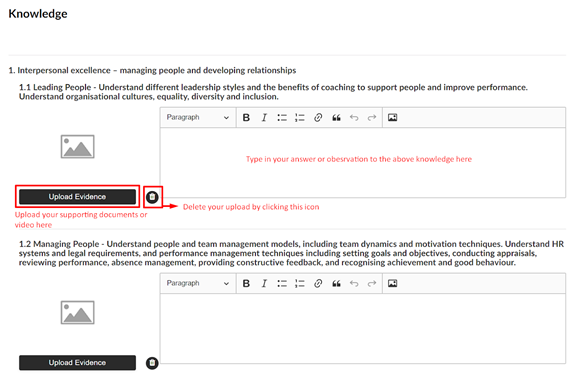
In the knowledge checklist, you can type in what you know about the question that is asked in the observation box, and if you have evidence that you can use to support your knowledge on the matter you can upload it using the upload evidence button.
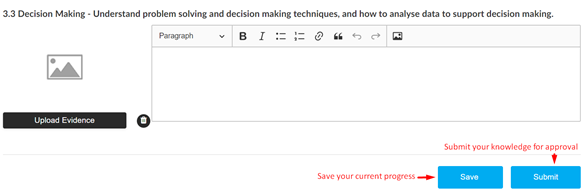
You can save your current progress and continue later by clicking on the “Save” button, and once you have completed the Knowledge section you can submit it for evaluation by clicking the “Submit” button.
These can be found at the bottom of the Knowledge list as shown below.
Skills
Skills are the practical application of knowledge needed to successfully undertake the duties that make up the occupation. They have to be learned through on and/or off-the-job training or experience. They do not need to be expressed in the workplace context, because the duties are expressed in this way. Skills statements typically include a verb.

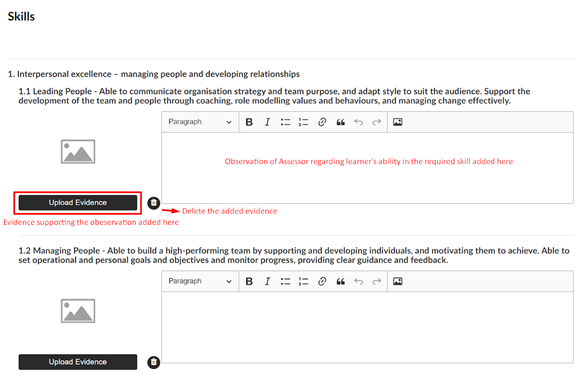
The skills checklist is usually added in by the assessor or tutor after your competency on the required subject is tested on-site.
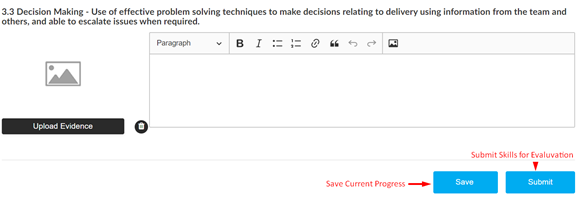
You can save your current progress and continue later by clicking on the “Save” button, and once you have completed the Skills section you can submit it for evaluation by clicking the “Submit” button.
These can be found at the bottom of the Skills list as shown below.
Qualifications
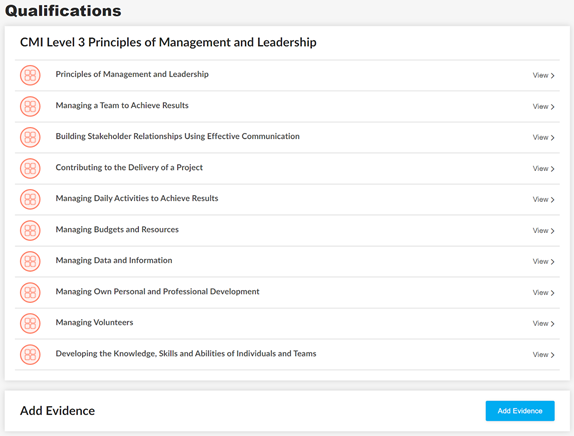
The qualifications included the standard requirement and questions for a particular apprenticeship program. In the qualifications section, students can see all the qualifications of the program. To go into a sub-qualification just need to click on 'view' beside that sub-qualification.
You can click on the relevant qualification and sub-qualification that the evidence needs to be uploaded to and click on ‘Attach Evidence’ and then the ‘Attach Evidence’ screen will pop up. Here you can add documents, videos, and images to the qualification for the verifier to assess.

A Typical Qualification list should look like the one below,
Adding Evidences to Multiple Qualifications and Sub Qualification
If you have any evidence that is relevant to multiple qualifications and sub qualifications you can add them by clicking the “Add Evidence” button as shown below,

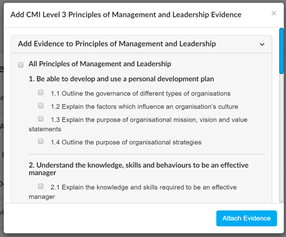
This will open the Attach Evidence dialog option, here you can tick multiple qualifications and sub-qualifications and once you have selected the relevant ones you can click “Attach Evidence”.
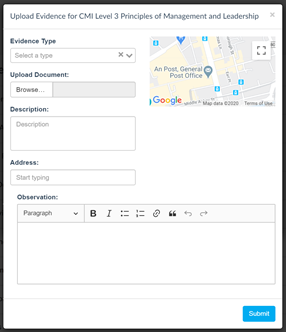
This opens the Upload Evidence dialog box as shown to the right, you can choose what type of evidence is being uploaded
- Images
- Videos
- Documents
A Description of the evidence can be uploaded with the evidence and an address.
At the bottom, you can type in the Observation that needs to be added to the relevant sub-qualifications and this will be added to all the ticked sub-qualifications upon clicking “submit”.
Sub-Qualifications
To view the sub-qualifications under a qualification you can click on the “view” button beside the qualification as shown below,
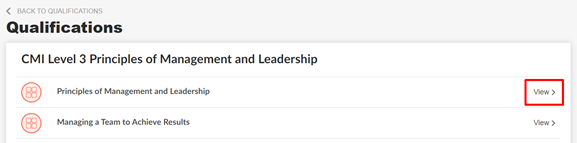
This will give you the different sub-qualification sections as shown below,

By clicking “Add Item” you can go into the individual question where you can add your observation and add evidence to the relevant sub-qualifications as shown below.
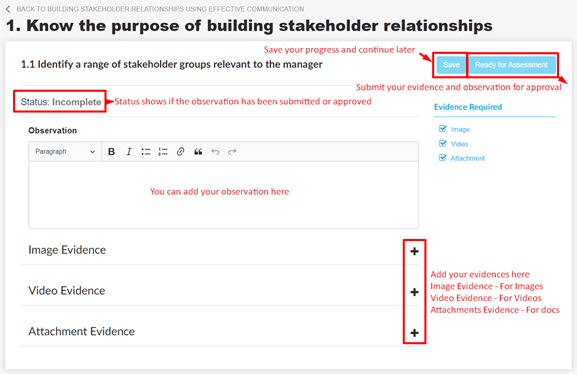
As shown above, you can add your observation after you have completed your masterclass or on job training relevant to the question.
You can also add evidence, this includes,
- Images Evidence
- Video Evidences
- Attachment Evidence
You can save your work by clicking the “Save” button and continue at a later time, or submit the work for Assessment by clicking “Ready for Assessment” this will send a notification to the Tutor that your work is ready for review.
Masterclasses
These are your learning sessions converted into digital courses that can be accessed at any time for your learning. Once you have completed your masterclasses you will be able to provide observations for the relevant qualifications.
A normal masterclass session should look like the one below,
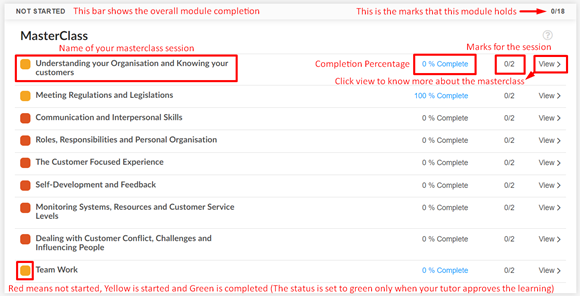
To know more about the masterclass you can click on the “View” button and this will take you to the following page,
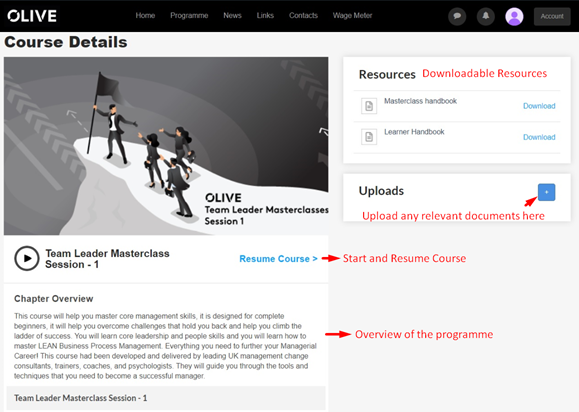
To start viewing your course you can click on the “Begin Course” button or “Resume Course” if you have already started viewing your course.
Course Player
The following is how the system course player looks like, to begin the course you can click on “Start” or if you have already begun you can click “Resume” to continue or “Start from Beginning” to start again.
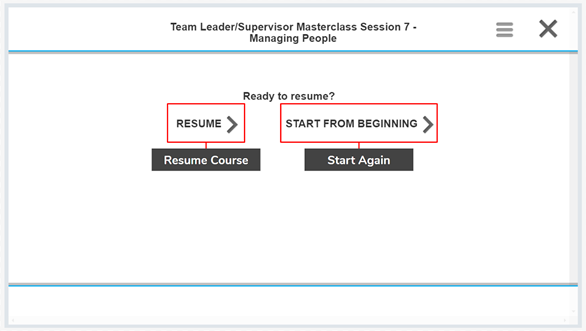
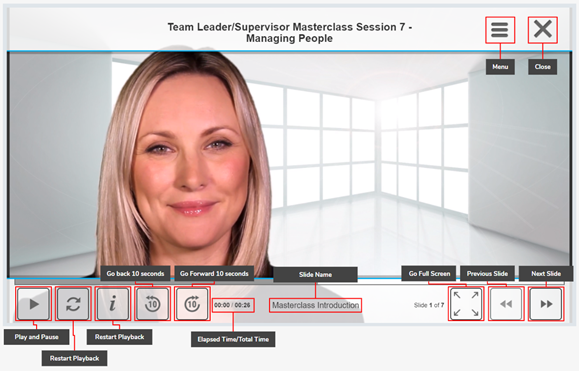
The following image shows how the course player works, if you want the transcript of the audio you can find it by clicking the “i” button in the course player.