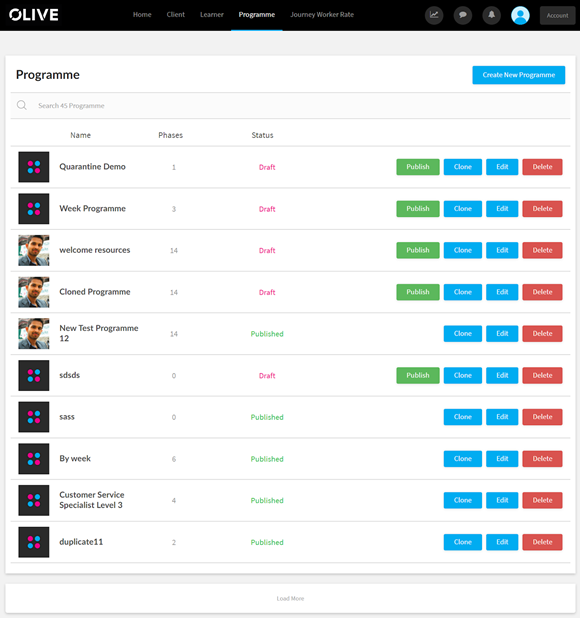
To Navigate to the Programme Section you can click on the “More” under the programme section of the homepage or click on the Programme tab in the Navigation bar.

This will bring you to the Programmes section which shows all the programmes and you can create your own programmes from here. An example has been shown below.
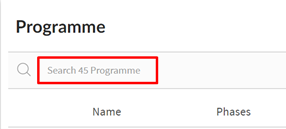
You can search for programmes by using the search option.
To Delete a programme you can click on the delete button beside the programme and this will delete the programme.
To Note: Deleting a programme will remove that programme for all learners and all
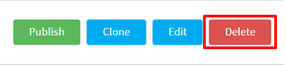
progress on that particular programme will be lost for all learners.
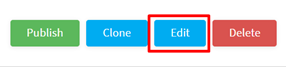
To Edit an already existing programme you can click on the Edit button
To Note: This is recommended only for draft programmes and not published programmes.
Cloning a Programme
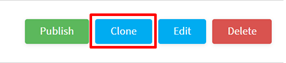
To Clone an existing programme you can click on the “Clone” button,
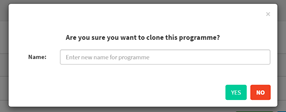
This will bring up the Clone creation dialog box as shown, here you can type in the name of the new cloned programme.
You can click on “YES” to clone the programme or “NO” to abort the cloning process.
To Note: Cloning a large programme takes a bit of time, please refresh the page in 5-10 mins to be sure all the information has been cloned.
Publishing a Draft Programme
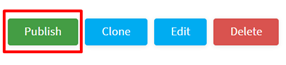
To publish a draft programme you can click on the “Publish” button beside the programme.
To Note: Only when a programme is published will the programme show up when you want to add this to a client.