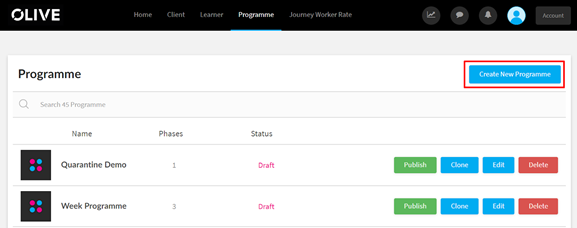
To create a new programme you can click on the “+ Add” button under the programme section of the Homepage or click on the “Create New Programme” under the Programme Section, this will open the Programme builder.
Add Programme
The first page as shown below will ask for the Programme Name, the logo for the programme, a description of the programme and if the programme is a timed programme you can tick the “has weeks” tick box in the end.
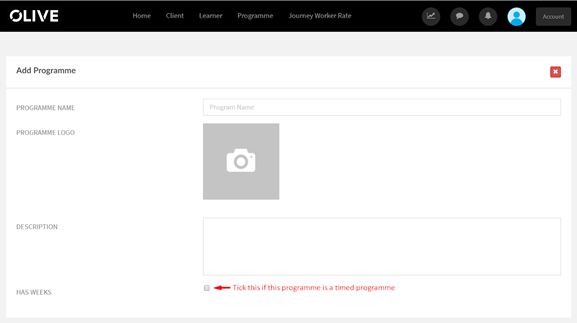
Difference between Timed and Standard Programmes
There are two ways of setting up a programme. With a weekly layout or in a standard format.
- If you choose to set up a weekly programme you will be given the option to enter a week number at the top of each phase. This will segment the phase into the week that you have chosen.
- If you do not choose the weekly format your programme will follow the standard layout and each phase will be divided by phase-type.
Once the information has been added and confirmed you will be taken to the Edit Programme page as shown below,
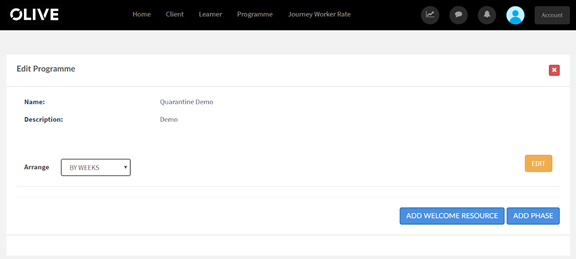
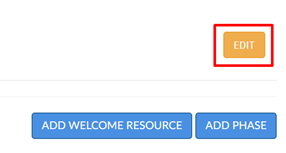
To Edit the initial information that was added you click on the “Edit” button, and this will take you to the initial page where you can change the necessary details.
Welcome Resource
This first section supports the learner with a basic introduction to the programme, along with further information on how to use the online resource to maximize your learning and development experience.
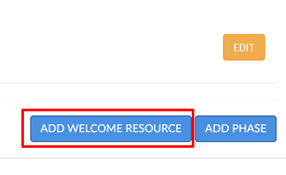
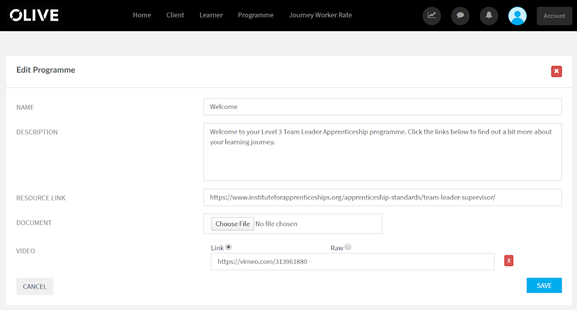
To Add the Welcome Resource you can click “Add Welcome Resource” and this will take you to the screen below,
Admin Edit View
Here you can add the Name for the welcome resource, description, link to the program in the company website for additional information, add documents like company handbooks and if you have a video that can accompany the welcome resource this can be either added as a link or as a raw video file.
Click here to see how this looks from a learner view
These formats can be added in the following:
Document: .pdf,
Video Link: Youtube or Vimeo Links
Raw Files: .mp4
Personal Development Plan - Week Specific Phase Type